Help
How can we help?
Short answers about Debix, from your first debt to deleting your account. Can’t find what you need? Email support@debix.uz.
Getting started
Signing in, first steps and contacts.
How do I sign in?
With Google or Telegram, no password needed. On the sign-in screen, choose “Sign in with Google” or “Sign in with Telegram”. By continuing, you agree to the Terms of use.
If you pick Telegram, the @DebixUz_Bot bot opens: tap “Start”, then “Send my number”.
What does the app show the first time I open it?
A short three-page intro: how to log a debt in seconds, how Debix reminds you of due dates, and how to track a debt with a partner. Once you sign in, the home screen is empty — you add your first debt with the “+” button at the bottom.
How do I add my first debt?
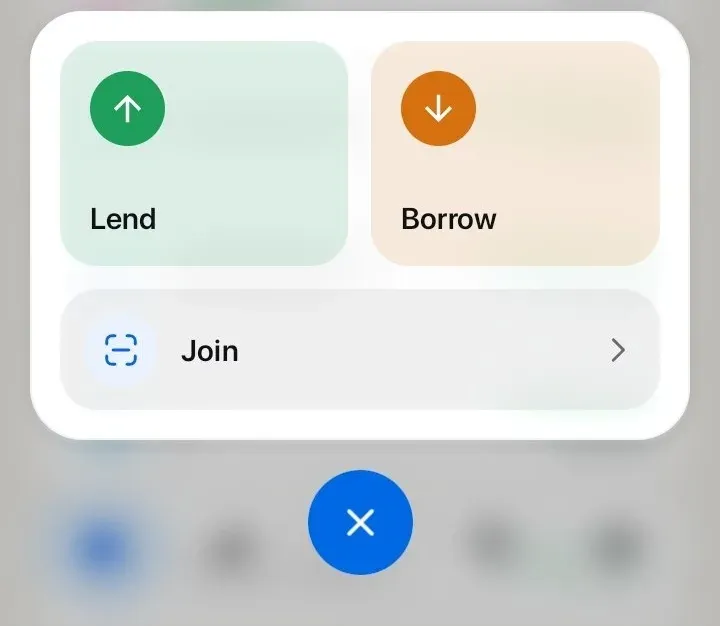
Tap “+” at the bottom and pick a direction:
- “Lend” if you gave the money, “Borrow” if you took it.
- Pick the person from your contacts, or type their name and number.
- Enter the amount.
- Set a due date (or leave “No due date”), add a note or photos if you like, then tap “Save”.
Do I have to give access to my contacts?
No. Without access, you can type the name and number yourself.
If you allow it, Debix reads your contacts on your phone, to help you find someone quickly and to show group members under the names you saved. The list isn’t sent to the server — a debt or group only gets the name and number (or email) of the person you pick. When you accept a shared debt, the name you saved for the sender is sent too.
Debts
Repayments, due dates, reminders and the archive.
What if only part of a debt is paid back?
Open the debt and log the amount: “Get back” if you lent, “Pay back” if you borrowed. Debix works out what’s left, and “Full balance” fills in the whole amount.
If the debt grows, use “Lend more” or “Borrow more”. To settle it all at once, tap “Pay off”.
How do due dates and reminders work?
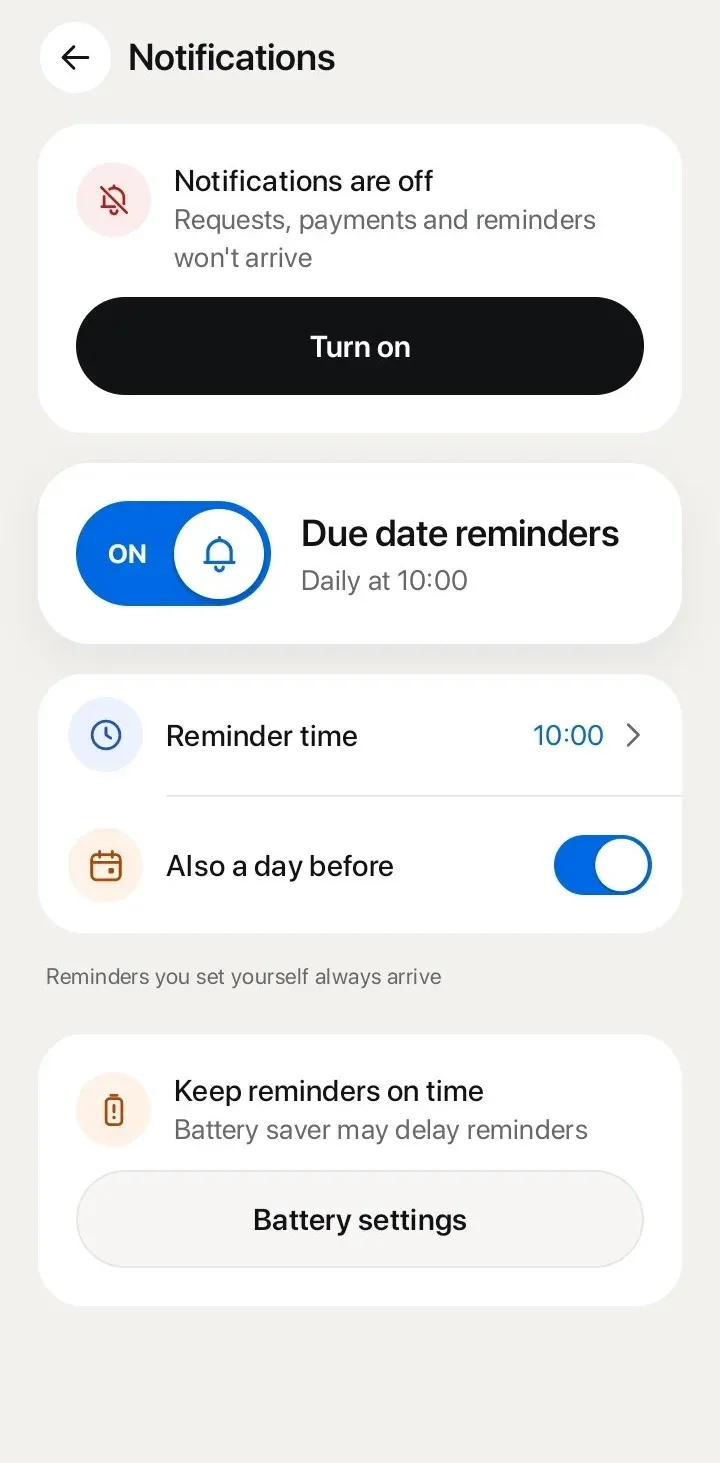
You pick a due date when you log a debt: “Tomorrow”, one of the next few days or “Other date”. Debix reminds you on the due date and the day before, at 10:00 by default.
You can change the reminder time or turn off “Also a day before”:
In the app Settings → Other settings → Notifications
On the lock screen, the notification just says “Debt reminder”, without the name or amount. Closed and archived debts get no reminders.
Can I set a reminder for a time I choose?
Yes. Tap the bell at the top of the debt page and, in “Set a reminder”, pick a date, time and note. Each debt can have up to 10 reminders like this, and under “Repeat” you can make them daily, weekly or monthly.
Reminders you set yourself always arrive, even with automatic reminders turned off.
What if a reminder is late or doesn’t arrive?
First, check the notification permission: if it’s off, the top of the “Notifications” page shows a “Notifications are off” card — you can turn them on right there.
Battery saver can also delay reminders, which is why the same page has a “Battery settings” button.
Where do closed debts go?
Once the balance reaches zero, an “Archive” button appears on the debt page. Archived debts live on the “Archive” page (the archive icon in the bottom bar opens it), and “Restore” brings any of them back.
Search works by name and finds both active and archived debts — even offline.
Shared debts
One debt that both of you see the same way: the other side accepts each entry.
Someone sent me a debt. What now?
The request arrives in “Notifications”, marked “Needs your reply”. Tap “Accept” and the debt appears for you too; tap “Decline” and the sender will see you declined.
To stop requests from that person, tick “Don’t send me more requests” when declining — this blocks them.
Every later entry, whoever adds it, waits for the other side’s reply — you’ll find these under “Awaiting reply”.
What if my partner doesn’t have the app?
You still log the debt, and Debix marks your partner as “Not on Debix”. Send them the invite link: once they install Debix from it and sign in (or verify the number you entered), the debt shows up for them — all that’s left is to accept it.
The link isn’t required: they can enter the invite code in the app via “+” → “Join”, or simply scan the QR code.
What about unwanted requests?
Block the sender: “Block” is in the debt menu and on the notification. Blocked users can’t send you requests or invites. You’ll find them under “Settings” → “Blocked users”, where you can unblock them too.
Groups
A trip, a shared flat or a party: who paid, and who owes whom.
How do I create a group?
On the home screen, tap “Groups” → “New group”. Give it a name (say, “Roommates” or “Samarkand trip”) and add people. Anyone with a number or email gets an invite automatically; you can share the invite code with the rest later.
How are expenses split?
In “Expenses”, add an expense: “Who paid?” is one person, and “For whom” is who shares it. The amount is split equally among the people you pick. You can attach up to 5 receipt photos.
How do I see who owes whom?
“Balances” adds up everyone’s expenses and shows who pays whom, and how much. It keeps the number of payments down: in a group of N people, at most N − 1.
You hand over the money yourselves, in cash or by transfer. Debix doesn’t move it — it only keeps the record: you log the payment, the recipient accepts it and the debt closes. Once everyone has paid, the group shows “Settled up”.
If someone forgets, the remind button on their row sends them a notification.
How do I join a group?
With an invite code or QR: tap “+” → “Join” (or “Join with a code” in “Groups”), then enter the 6-character code or scan the QR code.
No app yet? Install it from the invite link — the invite opens by itself once you sign in.
The code is in the group settings under “Invite code”, where you can copy it, share it or show the QR. Anyone can join with this code, so only send it to group members. If it ends up in the wrong hands, tap “Regenerate code” and the old one stops working.
Where can I see who did what in a group?
Group menu (“…”) → “History”: every action by month and day. “Report” in the same menu shares the group report as a PDF or text — for free.
Offline
Debix keeps working without a connection.
What if I’m offline?
Debts, entries, group expenses and payments queue up and go out by themselves once you’re back online. Search and Statistics work offline too.
A few actions only work online, such as deleting your account — the app will tell you with “Internet needed”.
How do I know an entry was sent?
A debt with unsent actions shows a small marker in the list. Tap it to open “Unsent actions”: “Queued” is waiting for a connection, and “Not sent” couldn’t go through. You can send them yourself with “Send again” or “Send all”.
Premium
Everything is free right now. Premium comes later as an optional subscription. Debts, groups and reminders don’t depend on it.
Account and data
Language, theme, privacy and deleting your account.
How do I change the app language?
In the app Settings → Other settings → App language
Choose Uzbek, Russian or English. This website’s language is switched with the language button at the top.
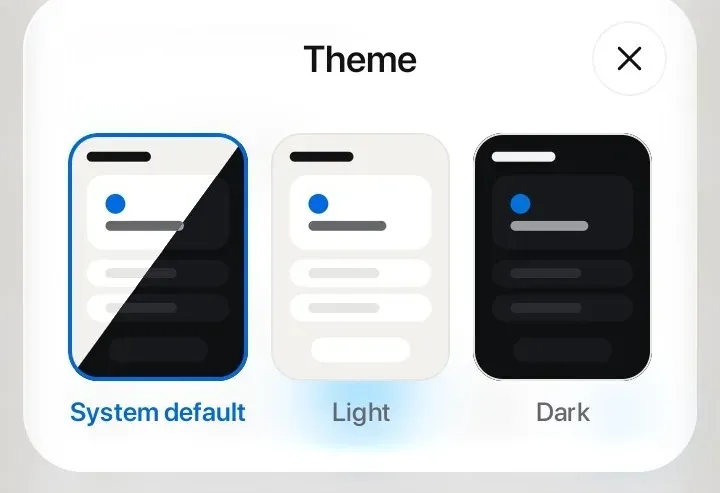
How do I change the theme?
In the app Settings → Theme
“System default”, “Light” or “Dark”. All of them are free right now; dark theme and “System default” may move to Premium later.
How do I hide my balance from others?
In the app Settings → Other settings → Hide balance
Turn on this switch. To lock the whole app, there’s “App lock”: a 4-digit PIN and, if you like, your fingerprint. It’s free right now and may move to Premium later.
Where is my data stored?
Your entries are stored on Debix’s server (Uzbekistan). A copy also stays on your phone so Debix works offline. Your contact list isn’t sent to the server — only the name and number (or email) of the person you pick. When you accept a shared debt, the name you saved for the sender in your contacts is sent too.
How do I delete my account?
In the app Settings → your profile card → Delete account
How you confirm depends on how you sign in: Google with a 5-digit code sent to your email, Telegram with a button in @DebixUz_Bot.
Your data is erased from the server right away. In shared debts and groups, your name and the shared records stay with your partners so their numbers still add up. If you sign in again with the same Google or Telegram account, a new empty account is created.
This can’t be undone.
No app? Email support@debix.uz with the email or phone number linked to your account — we’ll reply within 30 days. What’s deleted and what stays
Contact us
Didn’t find your answer? Write to us.
What to include
- the email or phone number linked to your account;
- your phone model and Android version;
- what you did and what happened, in a sentence or two.
If a screenshot shows other people’s names or numbers, cover them.
You can also write from the app: “Settings” → “Contact support”.